 Vertex Color
Color information can be assigned to the vertices of a polygon mesh.
Colors can be painted, edited and rendered per vertex.
Vertex color can also be shared with other 3D tools by exporting to a file format that supports vertex color.
Note Baking vertex color can be done in Shade 3D Standard and Professional.
| Basic | Standard | Professional |
|---|---|---|
| O | O | O |
Usage
Choose to Edit or Bake vertex color, or Manage Vertex Color Layers.
Vertex Color New Settings
- Select a polygon mesh element or elements (face, edge, or vertex).
- From the menu bar, select Tools > Vertex Color > Edit.
- From the Toolbox, select Modify > Mesh > Vertex Color > Edit.
- In the Tool Parameters, select Append New Layer.
- Click the Color field to open the color picker and select a color.
- The color is applied to the vertices of the selected polygon mesh elements.
Vertex color can also be applied by dragging from a different color picker, such as that of the Color Window, to the Figure Window.
Edit Vertex Color Tool Parameters
Select Vertex Color > Edit to open the Edit Vertex Color tool parameters. Here you can select existing vertex color layers, create new ones, and apply vertex color to the mesh.
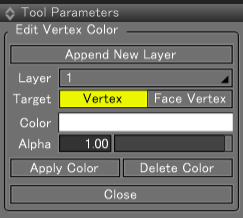
- Append New Layer
- Adds a new vertex color layer for editing. (maximum 8 layers)
- When multiple objects are selected with a different number of layers, a vertex color layer is added only to the object with the fewest layers.
- Layer Pop-up Menu
- Displays the number of the currently editable layer.
- Select the layer you wish to edit from this pop-up menu.
- When multiple objects are selected, only layers shared by all the objects are available.
- Target
- Color
- Opens a color picker, allowing you to select the vertex color to apply. Changing this color will change the vertex color.
- Alpha
- Specifies the vertex color alpha value.
- When combined with Transparent Alpha in the Surface Attributes' mapping settings, this value is treated as the level of transparency.
- Apply Color
- Applies the vertex color.
- To apply the same vertex color to a different selection, select the new elements in the Figure Window and then click Apply Color again.
- Remove Color
- Assigns the default vertex color of white (RGB: 1, 1, 1, 1), removing any applied vertex color.
- The Color and Alpha settings are unaffected.
- Close
- Closes the Tool Parameters.
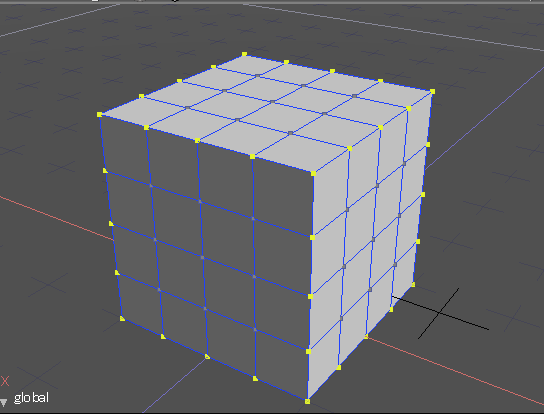
Before editing vertex color (vertices)
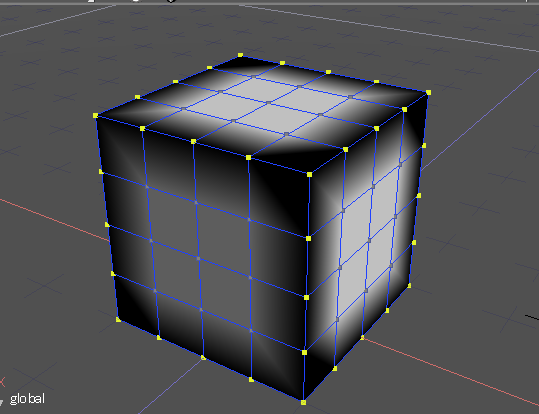
After editing vertex color (Target: Vertex, vertex color set to black)
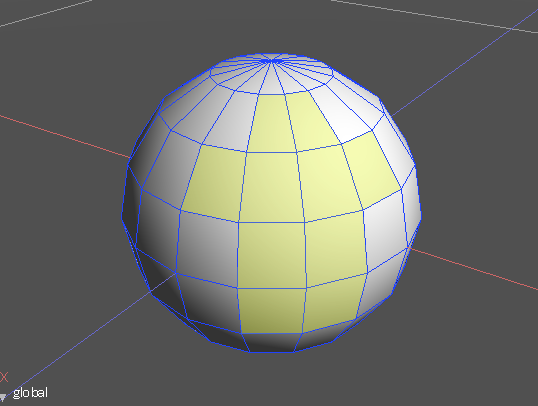
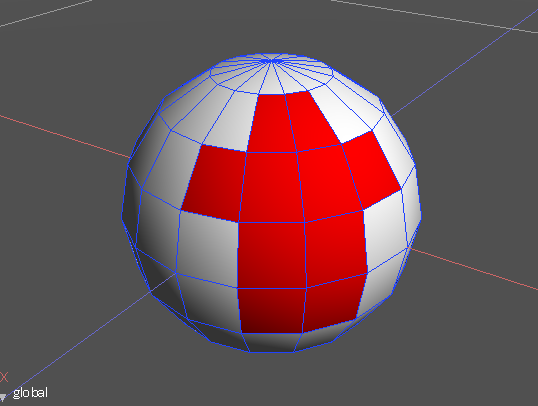
Before editing vertex color (face vertices)
After editing vertex color (Target: Face Vertex, vertex color set to red)
Bake Vertex Color
- Select a polygon mesh element or elements (face, edge, or vertex).
- From the menu bar, select Tools > Vertex Color > Bake.
- From the Toolbox, select Modify > Mesh > Vertex Color > Bake.
- Here you can set the tool parameters and bake the settings on the vertex color.
Bake Vertex Color Tool Parameters
Select Vertex Color > Bake to open the Bake Vertex Color tool parameters. The combined texture mapping settings of the selected polygon mesh (the texture that is rendered), calculated normals, etc., can be baked on the mesh as vertex color.
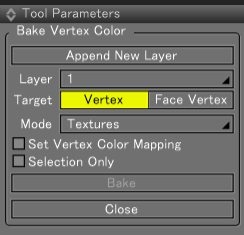
- Append New Layer
- Adds a new vertex color layer for editing. (maximum 8 layers)
- When multiple objects are selected with a different number of layers, a vertex color layer is added only to the object with the fewest layers.
- Layer Pop-up Menu
- Displays the number of the currently editable layer.
- Select the layer you wish to edit from this pop-up menu.
- When multiple objects are selected, only layers shared by all the objects are available.
- Target
- Mode Pop-up Menu
- Set Vertex Color Mapping
- When selected, surface attributes are created for the selected object and Vertex Color is assigned to the mapping settings.
- If surface attributes have not already been assigned, Vertex Color is added to the mapping settings.
- Selection Only
- Only bakes the selected faces, edges, and vertices.
- Only available in Modify Mode.
- Bake
- Bakes the settings as vertex color.
- Close
- Closes the Tool Parameters.
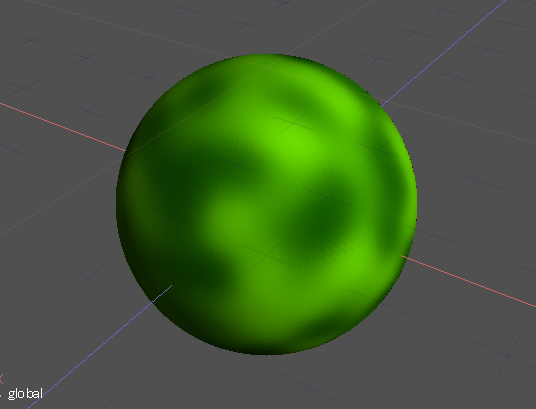
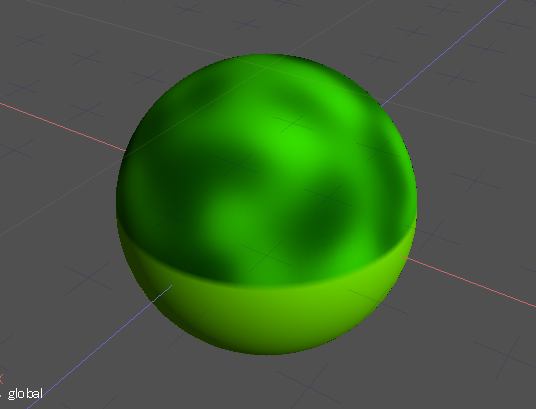
Before baking the vertex color (mapping set to Spotted)
Vertices selected for baking the vertex color
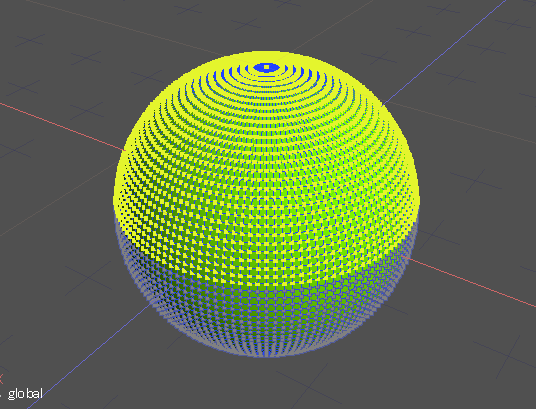
After baking the vertex color (mapping changed to Vertex Color)
Manage Vertex Color Layers... Dialog Box
Here you can add, duplicate, or remove vertex color layers.
- From the menu bar, select Tools > Vertex Color > Manage Vertex Color Layers...
- From the Toolbox, select Modify > Mesh > Vertex Color > Manage Vertex Color Layers...
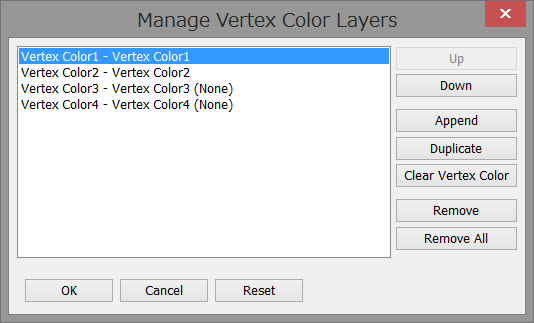
- Vertex Color Layer List
- Here the vertex color layers are listed.
- "None" is displayed after vertex color layers with all vertices set to the default setting (RGBA: 1, 1, 1, 1).
- Up
- Moves the selected vertex color layer up one.
- Down
- Moves the selected vertex color layer down one.
- Append
- Adds a vertex color layer with all vertices set to the default setting (RGBA: 1, 1, 1, 1) to the bottom of the layer list.
- Duplicate
- Copies the selected vertex color layer.
- The duplicated layer is added to the bottom of the layer list.
- Clear Vertex Color
- Returns all the vertices of the selected vertex color layer to the default setting (RGBA: 1, 1, 1, 1).
- Remove
- Deletes the selected vertex color layer.
- Remove All
- Deletes all the vertex color layers.
- Reset
- Returns the Manage Vertex Color Layers dialog box to the state when it was opened.
Surface Attribute Settings
Vertex Color Mapping Settings
To display vertex color in the Figure Window and in the rendered image, select Vertex Color for the mapping settings.
When exporting to OBJ, the vertex color layer specified for this mapping pattern takes precedence.
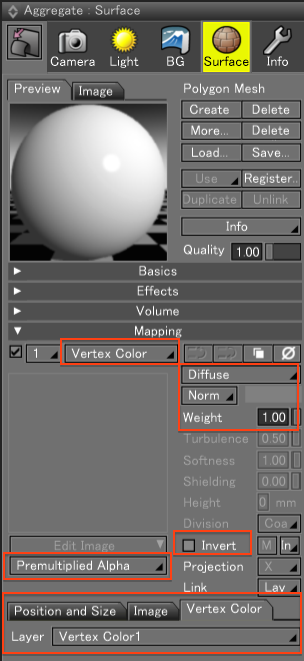
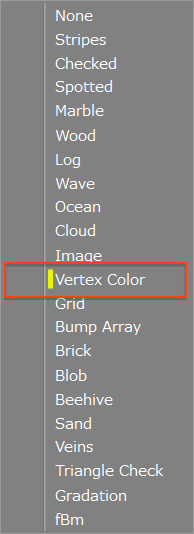
- Available Mapping Settings
-
- Mapping Type
- Weight
- Invert
- Channel Blend
- Supports Transparent Alpha.
- Link
- Vertex Color Layer
- Select the vertex color layer to use.
- If the selected vertex color layer does not exist for the relevant polygon mesh, vertex color is not mapped.
Caution Because the color information is dependent on the object, it will not display in the texture or mapping previews.
Note To show vertex color in the Figure Window, select Texture or Texture and Wireframe for the Figure Window shading setting.
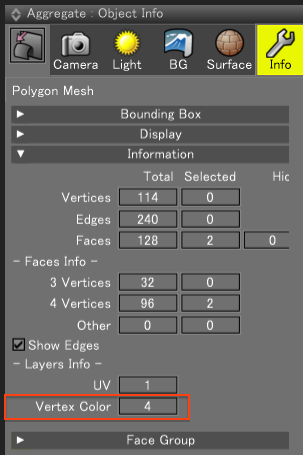
Object Info Window
The number of vertex color layers is displayed under the Layers Info of the Object Info Window for polygon meshes.
If multiple objects are selected with a different number of vertex color layers, #### is displayed instead.
Related Topics
- Direct and Indirect Illumination
- Lightmaps
- More Formats Supported for FBX Converter
- More Formats Supported for OBJ Converter